Showing posts with label OBIEE. Show all posts

Saturday, July 12, 2014

OBIEE 11G 11.1.1.7 Log Levels and how to Set OBIEE Log Level

OBIEE 11G  11.1.1.7 Log Levels and how to Set OBIEE Log Level

Goto=>Administrator Tool=> tools=>Options=> Repository Tab we can see the 
System Logging level for all SQL Queries.


Description of Query logging levels


Logging Level Information That Is Logged
Level 0 No logging.
Level 1 Logs the SQL statement issued from the client application. Also logs the following:
  • Physical Query Response Time — The time for a query to be processed in the back-end database.
  • Number of physical queries — The number of queries that are processed by the back-end database.
  • Cumulative time — The sum of time for all physical queries for a request (that is, the sum of all back-end database processing times and DB-connect times).
  • DB-Connect time — The time taken to connect to the back-end database.
  • Query cache processing — The time taken to process the logical query from the cache.
  • Elapsed time — The time that has elapsed from when the logical query is presented to the BI Server until the result is returned to the user. Elapsed time can never be less than response time, because elapsed time takes into account the small extra time between the logical query being presented to the BI Server to the start of preparation of the query. In cases where this delta time is negligible, the elapsed time equals the response time.
  • Response time — The time taken for the logical query to prepare, execute, and fetch the last record. This matches the TOTAL_TIME_SEC that is logged in usage tracking, as described in Section 9.2, "Description of the Usage Tracking Data."
  • Compilation time — The time taken to compile the logical query.
  • For each query, logs the query status (success, failure, termination, or timeout), and the user ID, session ID, and request ID.
Level 2 Logs everything logged in Level 1.
Additionally, for each query, logs the repository name, business model name, subject area name, SQL statement issued against the physical database, queries issued against the cache, number of rows returned from each query against a physical database and from queries issued against the cache, and the number of rows returned to the client application.
Level 3 Logs everything logged in Level 2.
Additionally, adds a log entry for the logical query plan, when a query that was supposed to seed the cache was not inserted into the cache, when existing cache entries are purged to make room for the current query, and when the attempt to update the exact match hit detector fails.
Do not select this level without the assistance of Oracle Support Services.
Level 4 Logs everything logged in Level 3.
Additionally, logs the query execution plan. Do not select this level without the assistance of Oracle Support Services.
Level 5 Logs everything logged in Level 4.
Additionally, logs intermediate row counts at various points in the execution plan. Do not select this level without the assistance of Oracle Support Services.
Level 6 and 7 Not used.


ODBC functions

Through the call of ODBC functions, you can see and set session variables included LOGLEVEL.
Example on how to:


set the log level to 5 with the issue SQL facility

call NQSSetSessionValue('Integer LOGLEVEL=5;')
 

get its value:

call NQSGetSessionValues('NQ_SESSION.LOGLEVEL')


Friday, July 11, 2014

obiee Using Variables to Display Values in Request Results, Dashboards and iBots

Using Variables to Display Values in Request Results, Dashboards and iBots


You can reference a session variable, repository variable (e.g. User.displayName), or a presentation variable, and use its value in request results, dashboards and iBots. For more information about variables, see Oracle Business Intelligence Server Administration Guide. This section contains the following topics:
  • What are session variables, repository variables, and presentation variables?
Session and repository variables are pre-defined values held on the server (e.g. NQ_SESSION.System.currentTime). A presentation variable must be declared in a dashboard prompt (using the Set Variable field), and its name and value are determined by the user, either when it is initially declared, or when it is referenced in request results, dashboards and iBots.
For more information about declaring presentation variables in a dashoard prompt, see Creating a Dashboard Prompt for Filtering Oracle BI Requests.
The following examples suggest how you might reference a session variable or a presentation variable:
  • Example 1 - Referencing a session variable
    To enable an author to display the current user's name in a report title view, the author simply adds a reference to the session variable @{NQ_SESSION.User.displayName} to the report title view. This session variable displays the current user name in the title view.
  • Example 2 - Referencing a presentation variable
    Where a dashboard report displays a prompt for a single region, the author would like to display the region selected by the user in the title of the dashboard report. To do so, the author simply adds a reference to a presentation variable in the report title for example, @{variables.myFavoriteRegion}. The presentation variable (myFavoriteRegion) needs to have been declared for the dashboard prompt. This presentation variable displays whatever region has been entered by the user in this dashboard prompt.

Where can you reference variables?

You can reference variables in the following areas:
  • Title Views
  • Narrative Views
  • Column Filters
  • Column Formulas
  • Conditional Formatting conditions (presentation variables only)
  • Direct Database Requests
  • Dashboard prompts
    Users will be prompted for a variable value which is then set into a request (session) variable and passed to the Oracle BI server.
  • Chart scale markers.
  • Gauge range settings.
  • Static text.
  • iBot Headlines and text

What is the syntax for referencing session variables?

The syntax for referencing session variables is as follows:
@{NQ_SESSION.variableName}
For example, @{NQ_SESSION.dashboard.description}
  • NQ_SESSION - indicates that this item references a session variable.
  • variableName - a reference to an object available in the current session context. For example: dashboard.description.

What is the syntax for referencing repository and presentation variables?

The syntax for referencing repository and presentation variables is as follows:
    • @{<variableName>}{<value>}[format] - for repository variables
      For example, @{dashboard.path} - inserts the path to the current dashboard.
    • @{variables.<variableName>}{<value>}[format] - for presentation variables
      For example, @{variables.myFavoriteRegion}{Central} - inserts the value of the presentation variable myFavoriteRegion.
      • variables - prefix that is required when you reference a presentation variable in a request.
      • variableName - a reference to an object available in the current evaluation context. For example: @{variables.myFavoriteRegion}.
      • value - (optional) - a constant or variable reference indicating a value to be used if the variable referenced by the variableName isn't populated (is undefined).
      • format - (optional) - a format mask dependent on the data type of the variable. For example: #,##0, MM/DD/YY hh:mm:ss, and so on.
        NOTE:  If the @ sign is not followed by a {, it will be treated as an @ sign. For more information, see Editing the Appearance of Column Contents in Oracle BI Answers.

What pre-defined variables can be referenced in request results, dashboards and iBots?

The following table contains a list of pre-defined variables that can be referenced in request results, dashboards, and iBots.
Table 7.

Object
Variable
Example
System
productVersion
currentTime
system.productVersion = 10.1.3.2 (Build 091506.1900)
system.currentTime = 2006-9-21 14:1:35
Session
locale
language
rtl
timeZone
loginTime
logoutTime
lastAccessTime
currentUser
session.locale = en-gb
session.language = en
session.rtl = false
session.timeZone = Unknown Time Zone
session.loginTime = 2006-9-21 14:0:17
session.logoutTime = 2006-9-21 16:0:17
session.lastAccessTime = 2006-9-21 14:01:35
session.currentUser = administrator
User
id
displayName
homeDirectory
user.id = administrator
user.displayName = administrator
user.homeDirectory = /users/administrator
Dashboard
currentPage
xml
dashboard.currentPage = test page name
dashboard.xml = the dashboard XML

OBIEE 11G Oracle BI Answers Object explanation

Oracle BI Answers Workspace
Tab
Description
Criteria Tab
Use the Criteria tab to view or change the columns and filters for the request. You can specify the order in which the results should be returned, column subtotals, formatting (such as headings and number of decimal places), and column formulas (such as adding a Rank or Percentile function). You can also add or modify column filters.
Four common views are available from this tab by clicking the appropriate view button:
Displays the compound layout view, where you can combine individual views and arrange them for display on a dashboard.

Displays the table view, where you can show results in a table.

Displays the chart view, where you can show results in different kinds of charts.

Displays the pivot table view, where you can take row, column, and section headings and swap them around to obtain different perspectives.
Results Tab
Use the Results tab to work with the results of a request, and create different views of the results such as charts, tickers, and pivot tables. You can add a variety of views, including charts and pivot tables that show the data, plain or formatted text that describes the results, HTML, and more.
The default results view is a simple table with a title. Your Oracle Business Intelligence Presentation Services administrator may have configured a different default results view for your organization.
You can combine views and position them anywhere on the page. For example, you can create side-by-side pivot tables that reflect different views of the data, charts that allow you to explore interrelationships in depth, and filters that limit the results. If the request is embedded in a dashboard, the dashboard page can also include links to additional requests of interest, related graphics, news stories, and so on.
Prompts Tab
Use the Prompts tab to create prompts that allow users to select values to filter a request. Prompts allow users to select values that dynamically filter all views within the request.
Advanced Tab
Use the Advanced tab to work directly with the XML and logical SQL generated for the request. If you know SQL and the structure of your underlying data sources, you can use the Advanced tab to view and work directly with the SQL statements generated for the request. For example, you can change the subject area or add advanced SQL statements.
The Advanced tab also provides access to links that you can use to execute saved requests from an external Web page, portal, or application.
NOTE:  The Advanced tab is recommended for use only by developers or experienced users with complex data analysis needs and capabilities. Only users with the appropriate responsibilities are given access to the Advanced tab.

OBIEE 11G 11.1.1.7 Common Key Words Explanation

Definitions of Common Terms in Oracle BI Answers
Term
Definition
Column
Columns indicate the columns of data that your request will return. Together with filters, they determine what your results will contain. To run a request, you need to specify at least one column to return.
Criteria
Request criteria consists of the columns and filters you specify for a request.
Dashboard
A dashboard is made up of sections of information that can contain items such as results from Oracle BI Answers, external Web content, HTML text, graphics, links to other sites, embedded objects such as requests, and so on. Dashboard content is organized into pages. The pages appear as tabs across the top of the screen in Oracle BI Interactive Dashboards.
Dashboard Prompt
A dashboard prompt is a special dashboard filter object that affects all content on a particular dashboard page, and potentially the content on additional dashboard pages.
Filter
A filter is a mechanism that restricts the result set, such as including only the ten best-selling items in results. Together with columns, filters determine what your results will contain.
Folder
A folder is an organizational construct that holds any kind of content you want to see in your dashboard, including requests created with Oracle BI Answers. A folder is similar to an operating system directory or subdirectory, or a Microsoft Windows folder.
Query
A query is the underlying SQL issued to the Oracle BI Server. You do not have to know a query language to use Oracle BI Answers.
Results
Results are the output returned from the Oracle BI Server for the request criteria you specified. The Oracle BI Presentation Services formats the data for presentation to you.
SELECT statement
Oracle BI Answers uses a modified form of the SELECT statement from Structured Query Language (SQL). Oracle BI Answers sends your request criteria in the form of logical SQL to the Analytics Server. The server then generates one or more requests for data, or queries, against one or more data sources. When the server gets the raw data back, it is in the form of tables that contain rows and columns. The server merges the data from multiple sources, and when necessary, applies any additional calculations or filters that pertain to the results. The server then sends the results back to Oracle BI Answers.
Subject Area
Oracle BI presents data in subject areas. A subject area contains columns that represent information about the areas of your organization's business, or about groups of users within your organization.
Subject areas have names that correspond to the types of information they contain, for example, Marketing Contracts, Service Requests, and Orders. Columns also have names that indicate the types of information they contain, such as Account and Contact.
Presentation Catalog
The Oracle BI Presentation Catalog stores content created with Oracle BI Answers and Oracle BI Interactive Dashboards. Content can be organized into folders that are either shared or personal. Types of content that can be stored in the Presentation Catalog include requests created with Oracle BI Answers, HTML content, and links to other images, documents, and sites.

OBIEE 11G Using Initialization Blocks and Variables

OBIEE 11G Using Initialization Blocks and Variables

You can use variables in a repository to streamline administrative tasks and modify metadata content dynamically to adjust to a changing data environment. A variable has a single value at any point in time. Variables can be used instead of literals or constants in the Expression Builder in the Administration Tool or in end-user analyses. At run time, Oracle BI Server substitutes the value of the variable.
In this set of steps you create a new initialization block, Current Periods, and three new dynamic repository variables—CurrentYear, CurrentMonth, and CurrentDay. You then use the variables as column filters in an Oracle BI analysis. You use the Variable Manager in the Administration Tool to define variables and initialization blocks.
To set up and use initialization blocks and variables, perform the following steps:
  • Create an Initialization Block
  • Create Variables
  • Test Your Work

Create an Initialization Block

1 . Open the BISAMPLE repository in offline mode.
2 . Select Manage > Variables to open the Variable Manager.
Screenshot for Step
3 . Select Action > New > Repository > Initialization Block.
Screenshot for Step
4 . Name the initialization block Current Periods.
Screenshot for Step
5 . Click the Edit Data Source button to open the Repository Variable Initialization Block Data Source dialog box.
Screenshot for Step
6 . Click the Browse button to open the Select Connection Pool dialog box.
Screenshot for Step
7 . Double-click the Connection Pool object to select it.
Screenshot for Step
The connection pool is added.
Screenshot for Step
8 . Enter the following SQL to determine the value of the current day, month, and year by finding the maximum value of the period key (BILL_DAY_DT) in the fact table:

SELECT CALENDAR_DATE, PER_NAME_MONTH, PER_NAME_YEAR FROM BISAMPLE.SAMP_TIME_DAY_D WHERE CALENDAR_DATE = (SELECT MAX(BILL_DAY_DT) FROM BISAMPLE.SAMP_REVENUE_F)
Screenshot for Step
9 . Click Test and confirm the expected results are returned. In this example, the results are determined by the data in the sample database used for this tutorial, which holds data through December 2010.
Screenshot for Step
10 . Close the Results window.
11 . Click OK to close the Repository Variable Initialization Block Data Source dialog box. Check your work:
Screenshot for Step

Create Variables

1 . Click Edit Data Target to open the Repository Variable Initialization Block Variable Target dialog box.
Screenshot for Step
2 . Use the New button to create three new variables: CurrentDay, CurrentMonth, CurrentYear. The order is important. The value returned from the first column in the initialization block SQL, CALENDAR_DATE, is assigned to the CurrentDay variable. The value of the second column, PER_NAME_MONTH, is assigned to CurrentMonth (the second variable), and the value of the third column, PER_NAME_YEAR, is assigned to CurrentYear (the third variable). If necessary, use the Up and Down buttons to arrange the variables.
Screenshot for Step
3 . Click OK to close the Repository Variable Initialization Block Variable Target dialog box.
4 . Leave the default refresh interval set to every hour. This means that the variables will be reinitialized every hour.
Screenshot for Step
5 . Click the Test button and check the results:
Screenshot for Step
In this example, the results are determined by the data in the sample database used for this tutorial, which holds data through December 2010.
6 . Close the Results window.
7 . Click OK to close the Repository Variable Initialization Block dialog box.
8 . Check your work in the Variable Manager:
Screenshot for Step
9 . Close the Variable Manager.
10 . Save the repository and check consistency. Fix any errors or warnings before proceeding.
11 . Close the repository. Leave the Administration Tool open.

Test Your Work

1 . Return to Fusion Middleware Control and load the BISAMPLE repository. If you need help, click here to review steps from earlier in this tutorial.
2 . Return to Oracle BI and sign in.
3 . Create the following analysis to test the variables.
Time.Per Name Year
Time.Per Name Month
Time.Calendar Date

Base Facts.Revenue
Screenshot for Step
4 . Click Filter for the Per Name Year column. The New Filter dialog box opens.
Screenshot for Step
5 . Select Add More Options > Repository Variable.
Screenshot for Step
6 . In the Repository Variable field, enter CurrentYear to create a filter for the Per Name Year column using the CurrentYear repository variable.
Screenshot for Step
7 . Click OK to close the New Filter dialog box. The filter is added to the Filters pane.
Screenshot for Step
8 . Repeat the steps to add the CurrentMonth and CurrentDay repository variables as filters for Per Name Month and Calendar Date columns, respectively.
Screenshot for Step
Screenshot for Step
Screenshot for Step
9 . Click Results and confirm that data only for the current year, month, and day is returned (based on the sample data set).
Screenshot for Step
10 . Sign out of Oracle BI.


Source

www.oracle.com  manual


OBIEE 11G Dynamic Respository Variables creation

OBIEE 11G Dynamic Respository Variables creation

To create a dynamic repository variable, perform the following steps:

1.Return to the SH repository open in online mode.
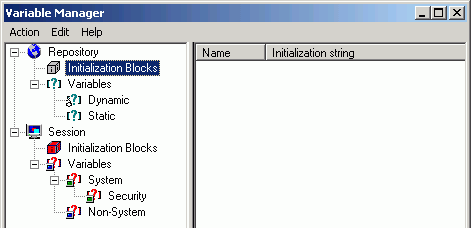
2.Click Manage > Variables to open the Variable Manager.
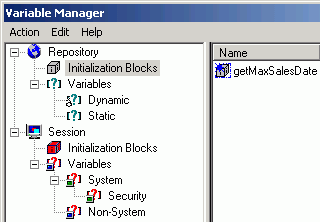
3.Click Repository > Initialization Blocks.
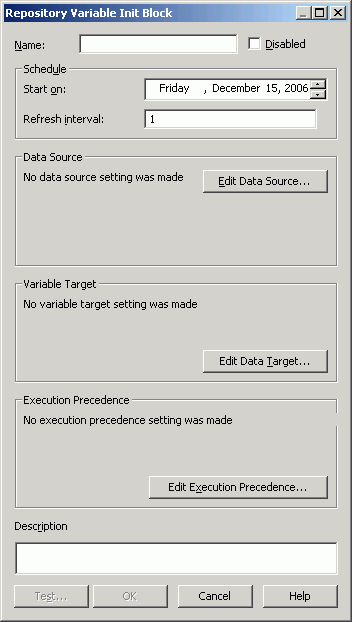
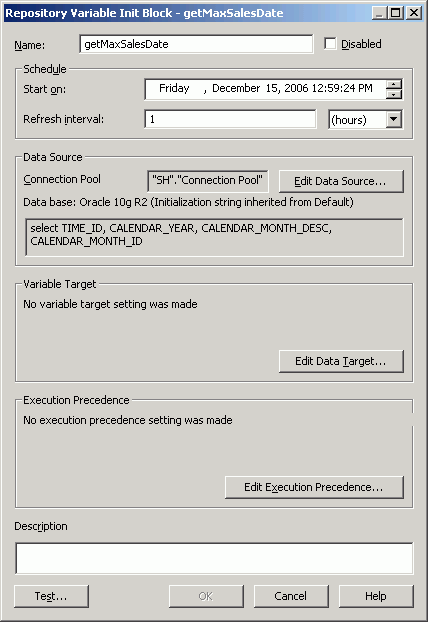
4.Right-click the white space and select New Initialization Block to open the Repository Variable Init Block dialog box.
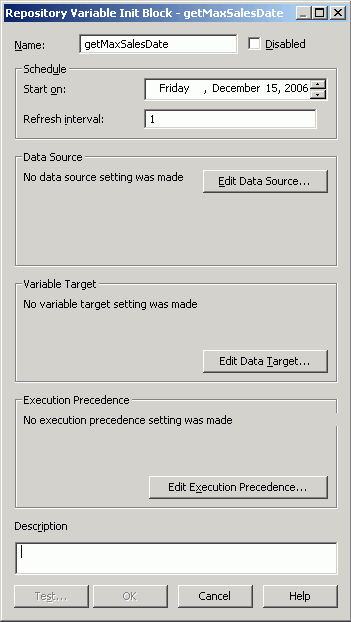
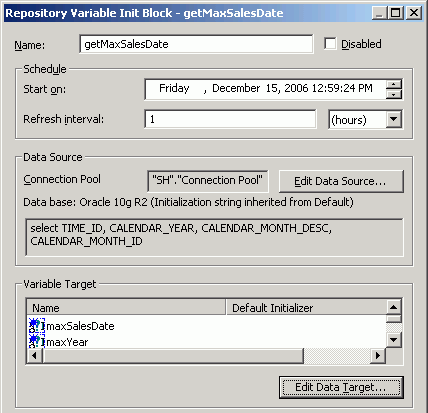
5.Name the initialization block getMaxSalesDate.
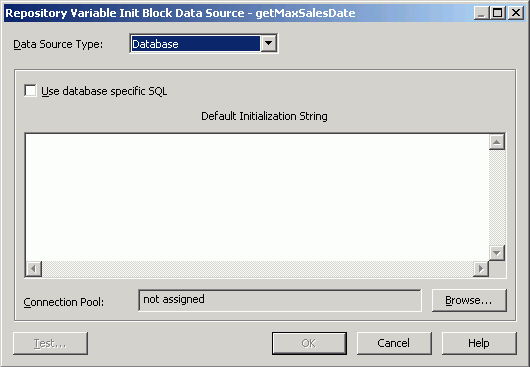
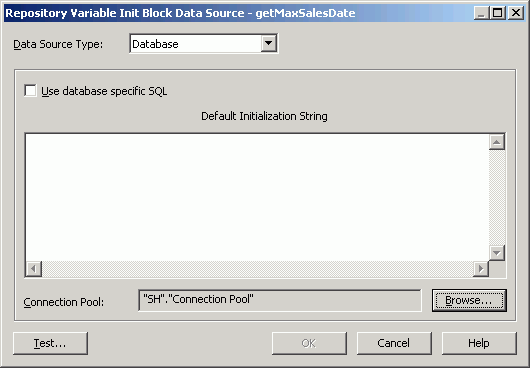
6.Click Edit Data Source to open the Repository Variable Init Block Data Source dialog box.
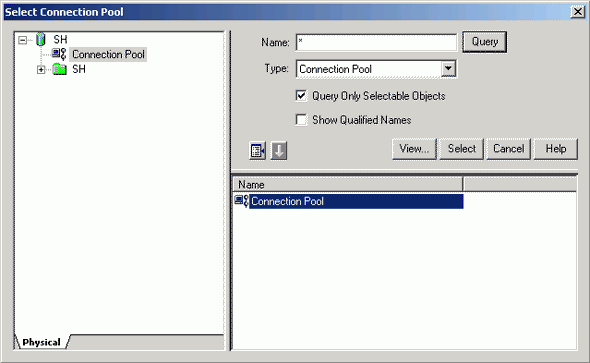
7.Click the Browse button to open the Select Connection Pool dialog box.
8.Double-click the SH > Connection Pool object to add it to the Connection Pool field in the Repository Variable Init Block Data Source dialog box.
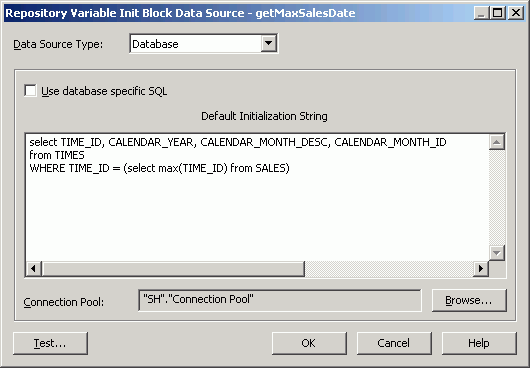
9.In the Default Initialization String field, type the following SQL:
select TIME_ID, CALENDAR_YEAR, CALENDAR_MONTH_DESC, CALENDAR_MONTH_ID from TIMES
WHERE TIME_ID = (select max(TIME_ID) from SALES)
10.Click OK to close the Repository Variable Init Block Data Source dialog box. The connection pool and initialization string are added to the Repository Variable Init Block dialog box.
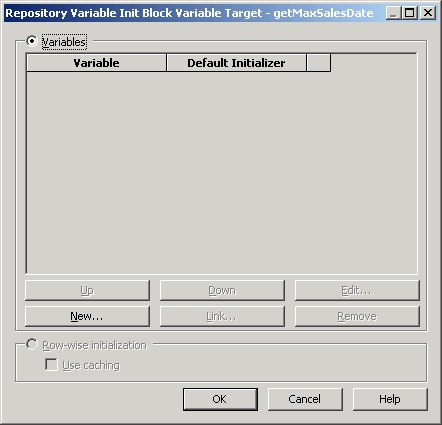
11.Click Edit Data Target to open the Repository Variable Init Block Variable Target dialog box.
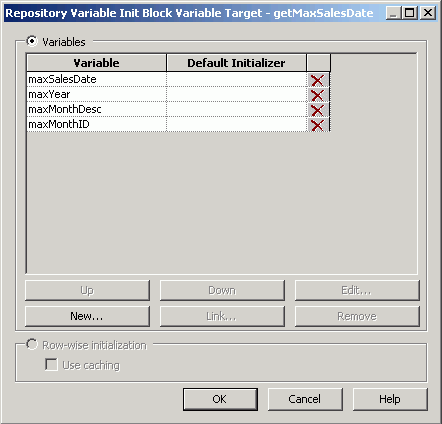
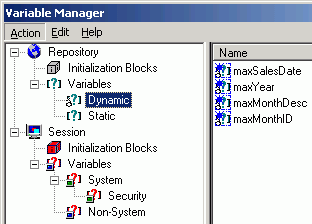
12.Use the New button to create four variables: maxSalesDatemaxYearmaxMonthDesc, and maxMonthID. The order is important. The order of the variables must match the column order in the initialization string.
13.Click OK to close the Repository Variable Init Block Variable Target dialog box. The variables appear in the Variable Target field in the Repository Variable Init Block dialog box.
14.Click Edit Data Source to open the Repository Variable Init Block Data Source dialog box.
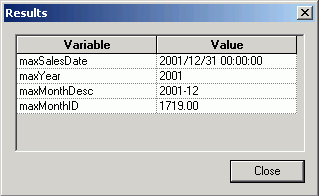
15.Click Test and verify you get the results in the picture.
16.Close Results.
17.Click OK to close the Repository Variable Init Block Data Source dialog box.
18.Click OK to close the Repository Variable Init Block dialog box. The getMaxSalesDate initialization block is displayed in the Variable Manager.
19.Select Repository > Initialization Blocks > Variables > Dynamic to see the variables displayed in the Variable Manager.
20.Click Action > Close to close the Variable Manager.
21.Check in changes.
22.Select File > Check Global Consistency. If the Consistency Check Manager displays any errors, edit the repository to correct the errors before continuing. If there are no error messages, close the Consistency Check Manager.
23.Save the repository.
24.Return to Answers.
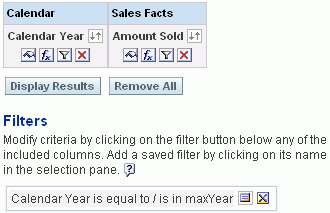
25.Build the following query:
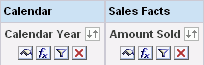
Calendar.Calendar YearSales Facts.Amount Sold.
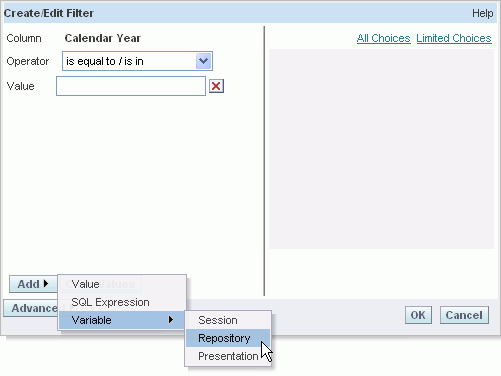
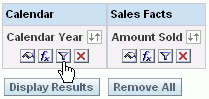
26.Click the Add Filter button for the Calendar Year column.
27.In the Create/Edit Filter dialog box, click Add > Variable > Repository.
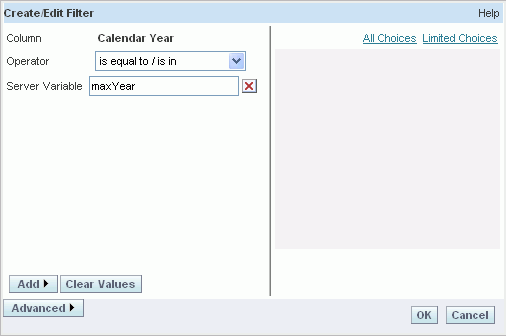
28.In the Server Variable field, type maxYear.
29.Click OK to close the Create/Edit Filter dialog box. The filter is added to the request.
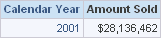
30.Click Results and verify that Calendar Year returns the expected result.


Source

www.Oracle.com manul